
Power Purchasing
See what each site should pay for electricity under its tariff, check it against your bills, test changes, manage supply contracts and build next year's budget.
Power Purchasing shows what each site pays for electricity, why it pays that, and where buying or using power differently would save money. Huckleberry models each utility account's cost from its tariff and the site's hourly load, then checks that model against what you were actually billed. When the two agree, you can trust the model to answer “what if” questions, compare supply offers and forecast next year's spend.
Open Power Purchasing from the Dashboards menu. If you don't see it, it isn't turned on for your account yet. Email info@huckleberryservices.com and we'll set it up.
Two inputs drive every number: the tariff on each utility account and the site's load shape. Confirm both on the Rate & load tab first. The What-if, supply and budget figures for a site are only as good as those two inputs.
Quick start
- Scan the portfolio — the KPI strip and site table show where your electricity spend sits and which sites have weak data.
- Open a site — check that every account has a matched rate.
- Confirm the rate and load — on Rate & load, pick the right tariff and the meter (or building type) that represents the site, then check that billed and modelled costs line up.
- Explore — test operating changes on What-if, and compare supply offers on Supply & RTP.
- Plan — create next year's budget, approve it, and let Huckleberry track bills against it.
The portfolio
The landing page summarises every site you have access to.
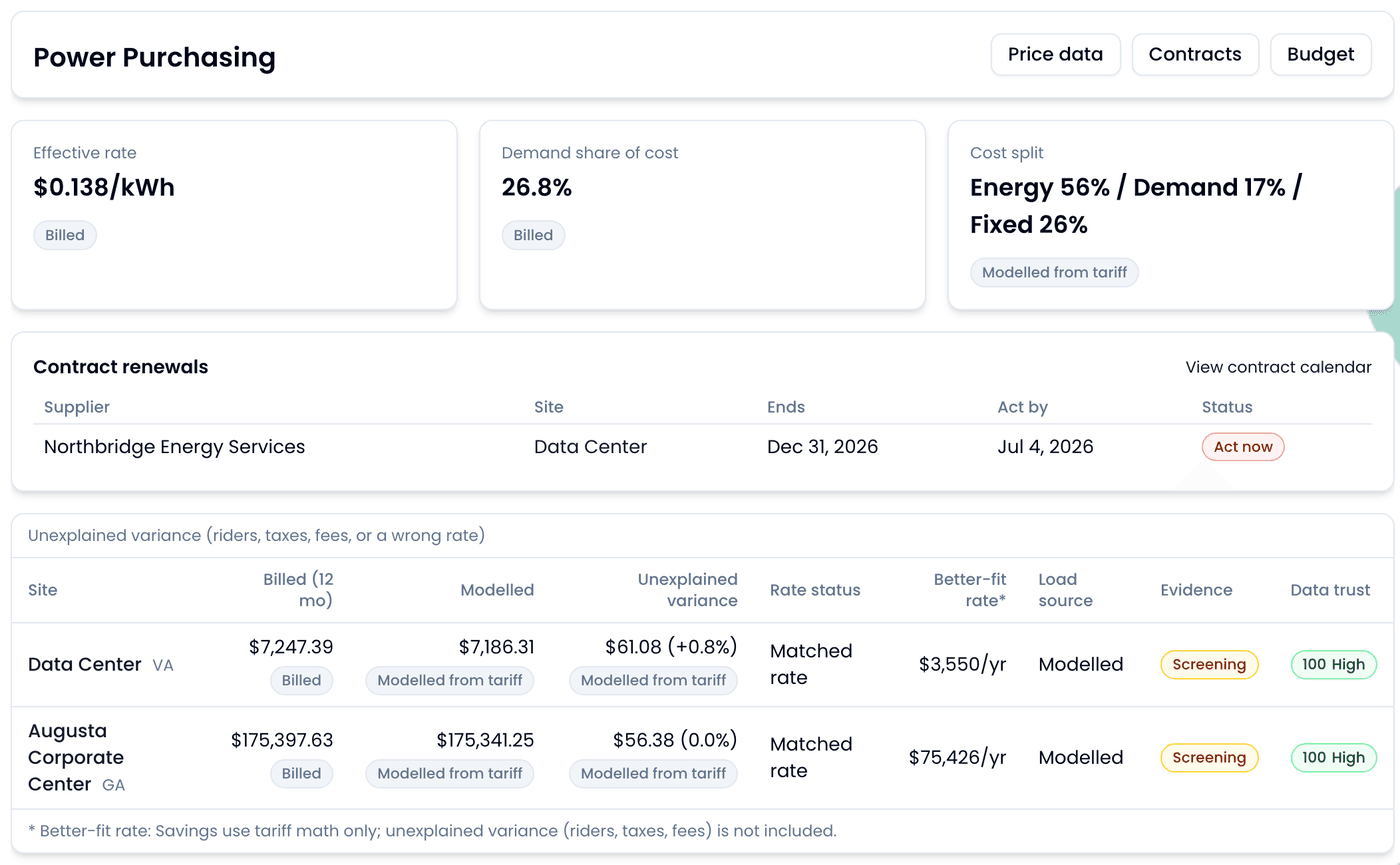
- KPI strip — figures such as effective rate (all-in $/kWh), the share of cost that comes from demand charges, and the cost split between energy, demand and fixed charges. Each figure is labelled with its source, such as Billed or Modelled from tariff.
- Contract renewals — supply contracts coming up for renewal and the date you need to act by.
- Site table — one row per site. Data trust and Evidence show how much of the site's model is measured (an interval meter, a confirmed tariff) and how much is estimated. Select a site to open it.
The buttons at the top right open Price data, the Contract calendar and Budget.
A site
The site page repeats the portfolio KPIs for that site and lists its utility accounts, each with its tariff and a rate status:
| Rate status | Meaning |
|---|---|
| Matched rate | The tariff is set and its modelled cost lines up with the bills. |
| Estimated rate | Huckleberry's best guess. Confirm it on the Rate & load tab. |
| Needs a rate | No tariff chosen yet, so the account can't be modelled. |
| Custom rate | A negotiated or special rate that can't be modelled from a published tariff. |
Each account card also shows the billed and modelled cost for the last 12 months and the gap between them. Better-fit rate lists other tariffs the account could move to and what each would cost on the same load. Check eligibility with your utility before switching.
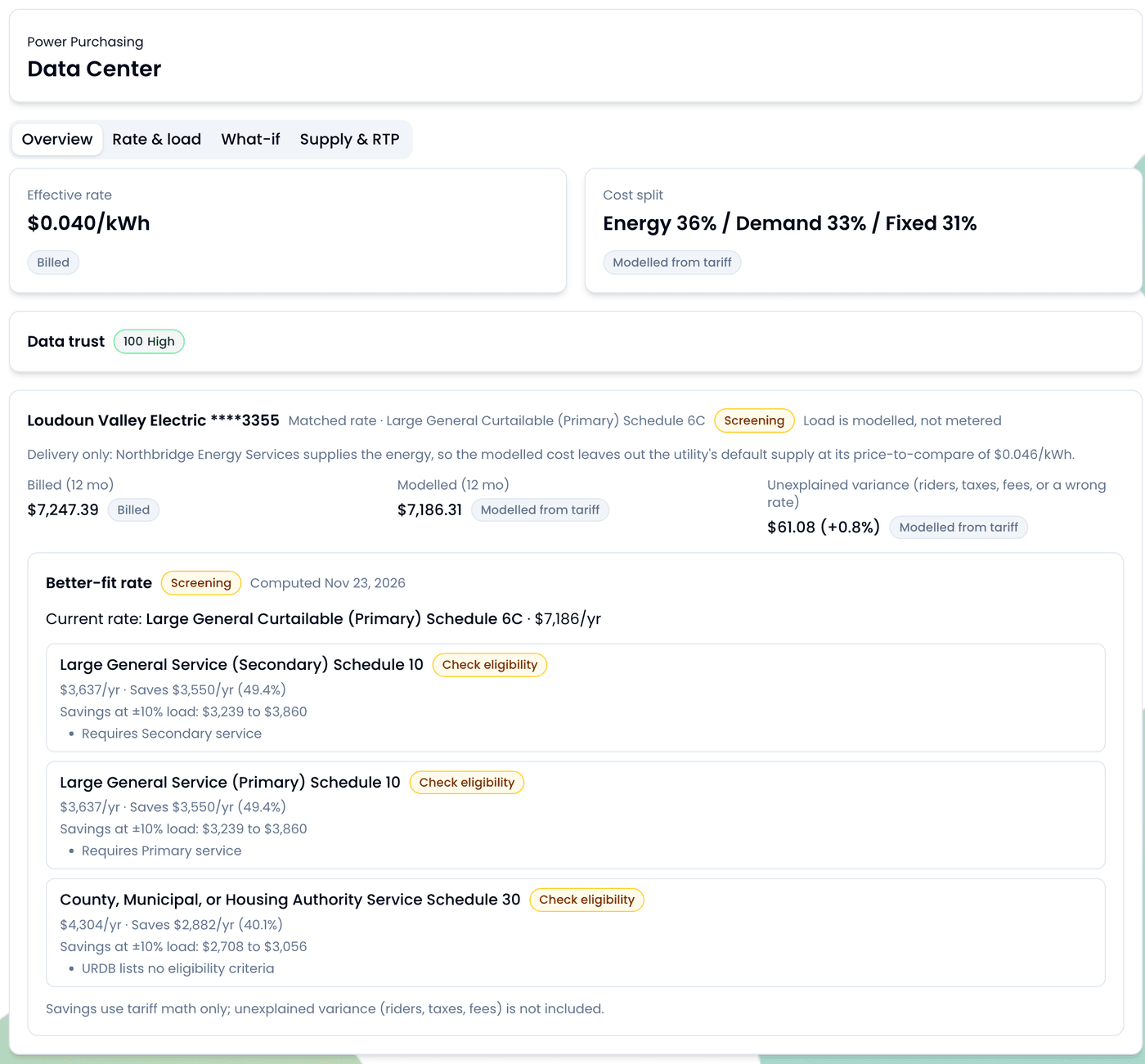
Data trust explains what lowers confidence in the site's numbers, such as no interval meter, an unconfirmed tariff or missing bills, and what to fix first. Work through the tabs from left to right: Rate & load, What-if, then Supply & RTP.
Delivery-only accounts
If a site buys its electricity from a competitive supplier, the utility only delivers it. Once the supplier account is linked to the utility account on the Supply & RTP tab, Huckleberry prices the utility account as delivery only: the tariff cost minus the utility's default supply, at its price-to-compare. The account card notes this, so the billed and modelled figures are compared like for like.
A delivery-only account needs the utility's price-to-compare, which you enter in the supplier account's Comparison settings under Price-to-compare periods. Until it's set, the account shows Delivery only: needs the utility's price-to-compare.
Rate & load
How the site uses power, and what its tariff charges for it.
- Typical day — the site's hourly load on a typical weekday and weekend. It comes from an interval meter when one is set as the load source. Otherwise it's a modelled profile for the building type, scaled to match the bills.
- Change load source — pick the meter that measures the whole site, or, for a site that only has bills, choose its building type (office, school, retail, warehouse and so on).
- Candidate rates — for an account without a confirmed tariff, Huckleberry ranks the utility's tariffs by how well each one reproduces your bills. Pick the right one and select Confirm this rate.
- Billed vs modelled — each bill beside what the tariff model says it should have been, with the unexplained variance for each cycle. When the bars agree, the rate and load are right.
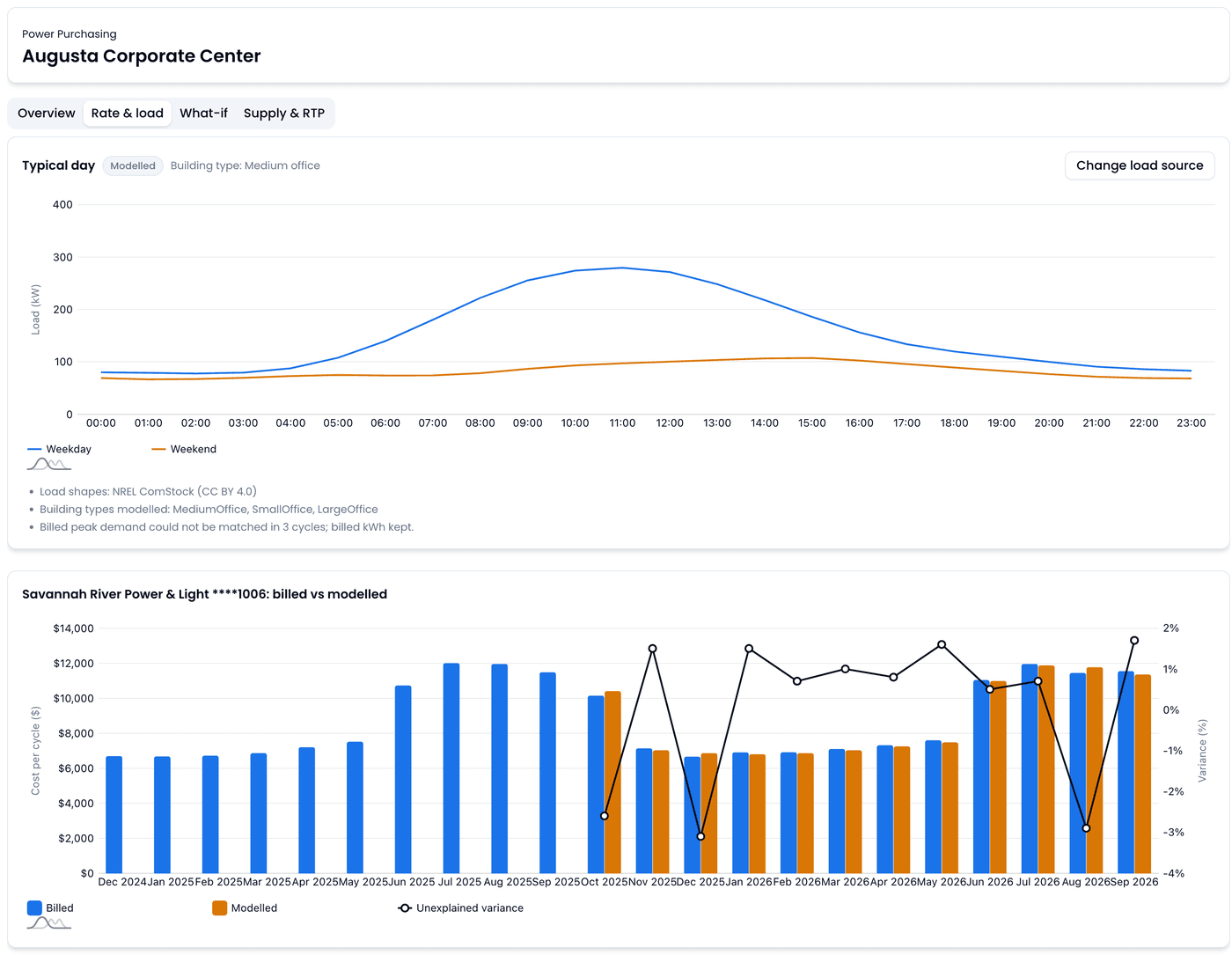
“The tariff may be wrong” means billed and modelled costs differ by more than this rate would explain. Common causes are the wrong tariff, a rate change the bills don't reflect yet, or a load source that doesn't represent the whole account. Check the candidate rates and the load source before relying on the site's other numbers.
What-if scenarios
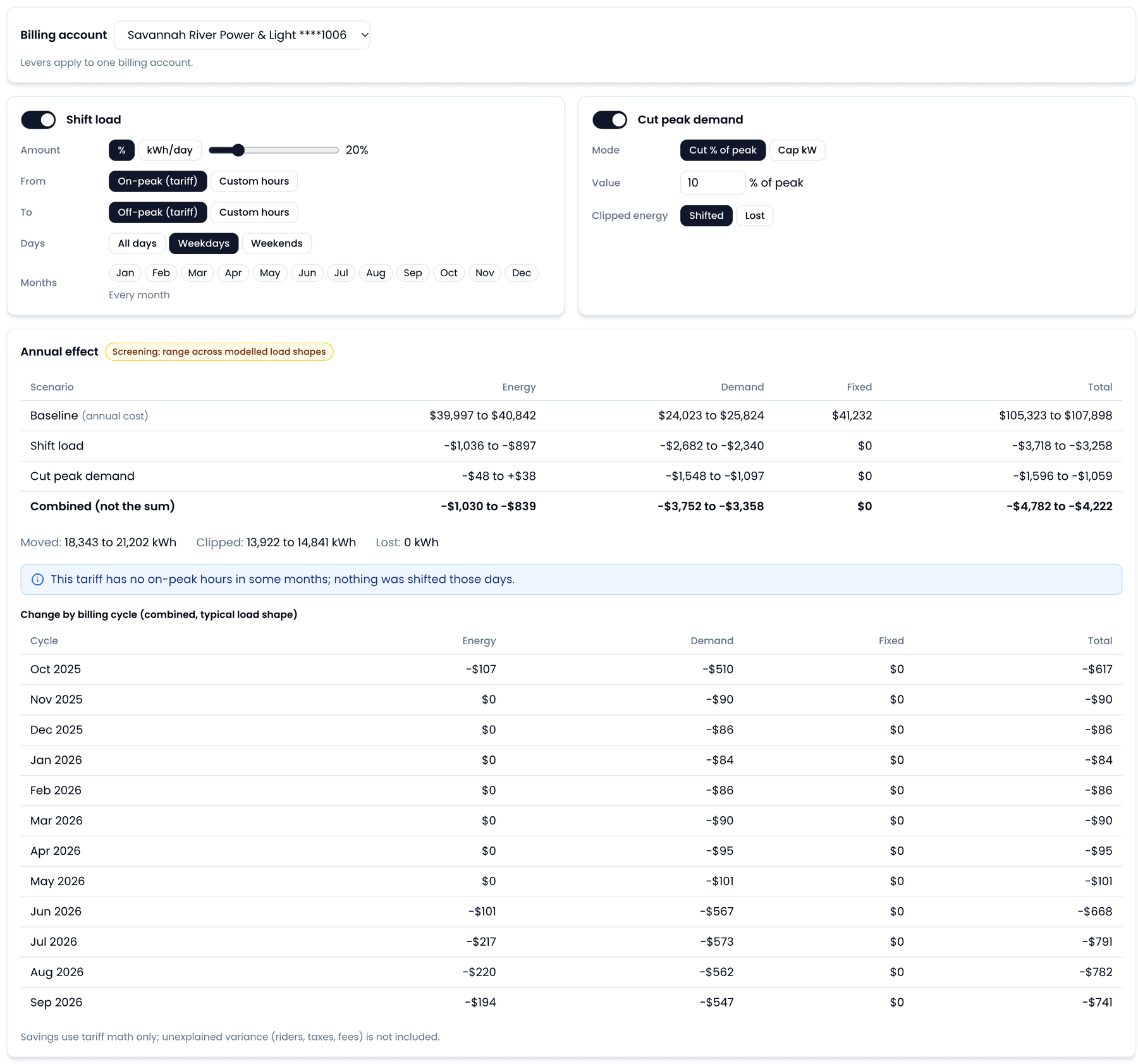
Test operating changes before you commit to them. Every scenario is priced on the site's own tariff and hourly load.
- Shift load — move energy from expensive hours into cheaper ones, such as pre-cooling a building in the morning. Set the share of load (or kWh per day) to shift, the hours to shift from and to, and the days and months it applies to.
- Cut peak demand — cap demand at a set kW, or cut each billing cycle's peak by a percentage. This is the lever for demand charges.
- Annual effect shows the change in cost by charge type, and the load chart shows the shape before and after.
- Save a scenario to compare options side by side or share them with your team.
Supply & RTP
For accounts that buy electricity from a competitive supplier: the contract, how it's performing, and what to do at renewal.
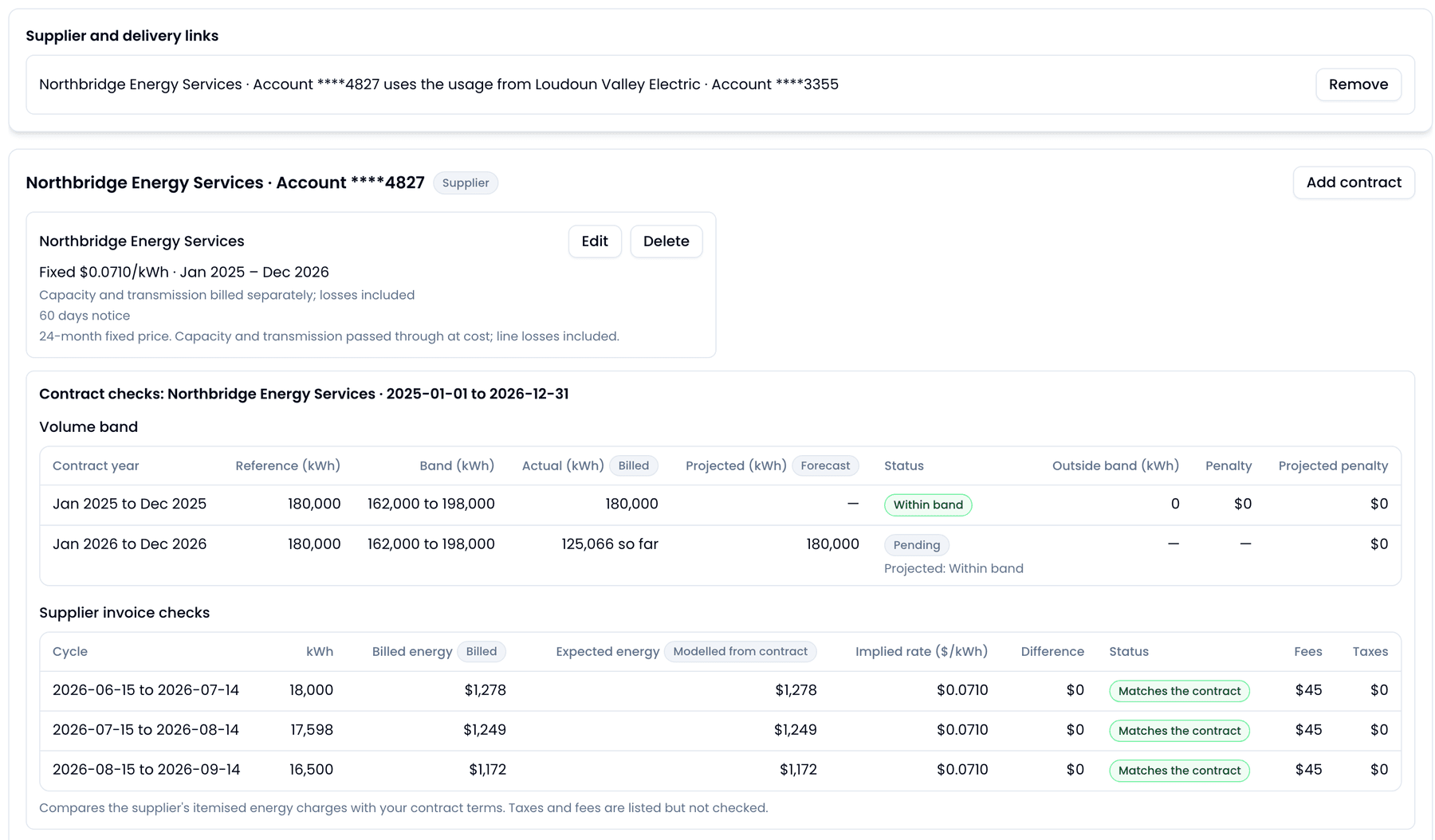
- Supplier and delivery links pair the supplier's bill with the utility account that measures the kWh, so supplier cost can be checked against real usage. Linking also switches the utility account to delivery-only pricing.
- Contract — the price, term, notice period and what's included. Contract checks compare each supplier invoice with the contract and track volume against the swing band.
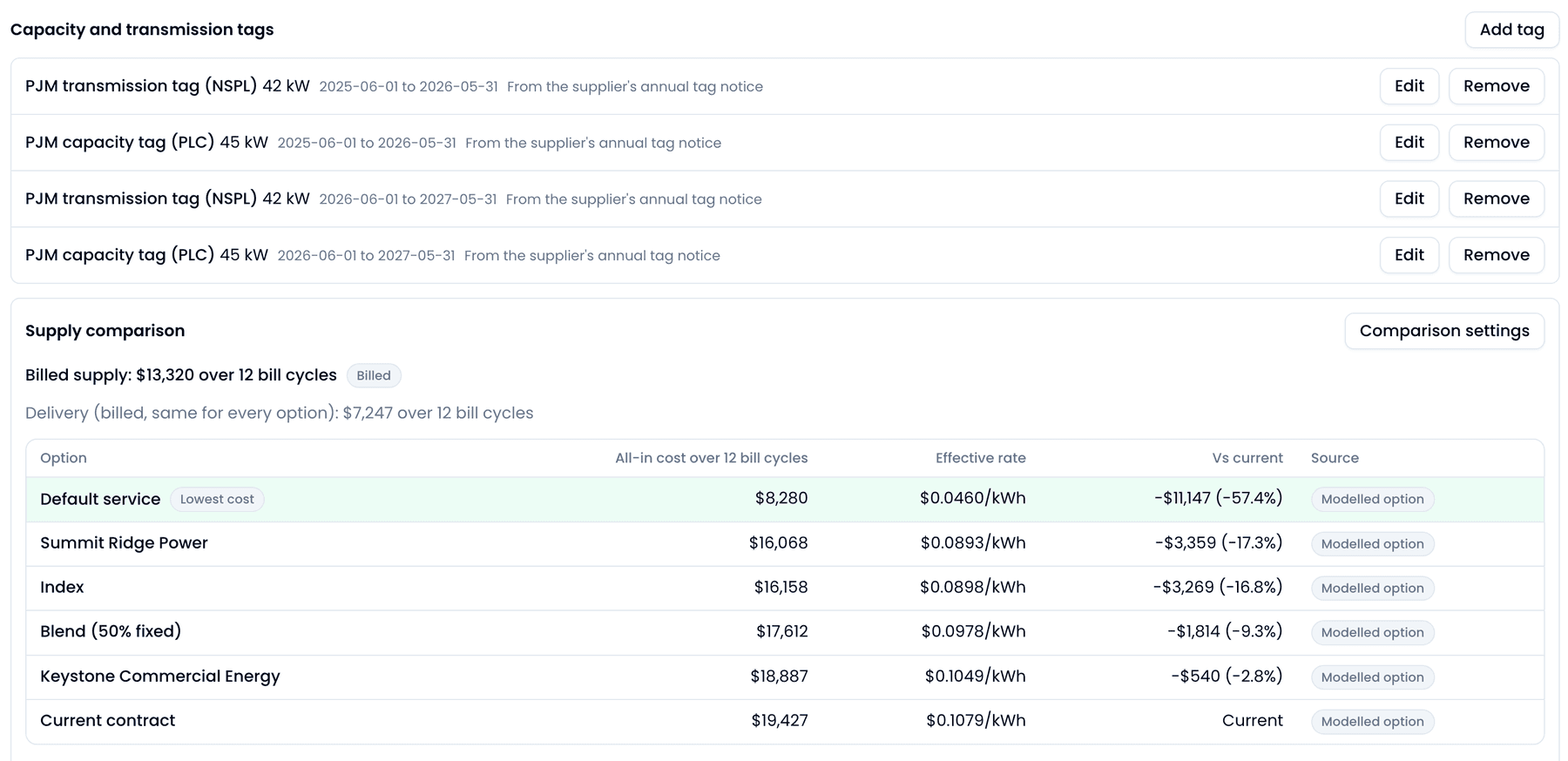
- Capacity and transmission tags (PLC and NSPL) drive a large share of the bill in PJM markets. Update them each June, when the new planning year starts.
- Supply comparison and Renewal offers price every offer on this site's own hourly load, so offers are compared like for like. Comparison settings hold the default-service details (customer class and price-to-compare periods) and the pass-through charges used for the comparison.
- Download the RFP pack to send your load data to suppliers.
- Hedge ledger tracks fixed-price blocks against the forecast and the approved budget. Contract replay re-prices past bills under the contract to show what it saved.
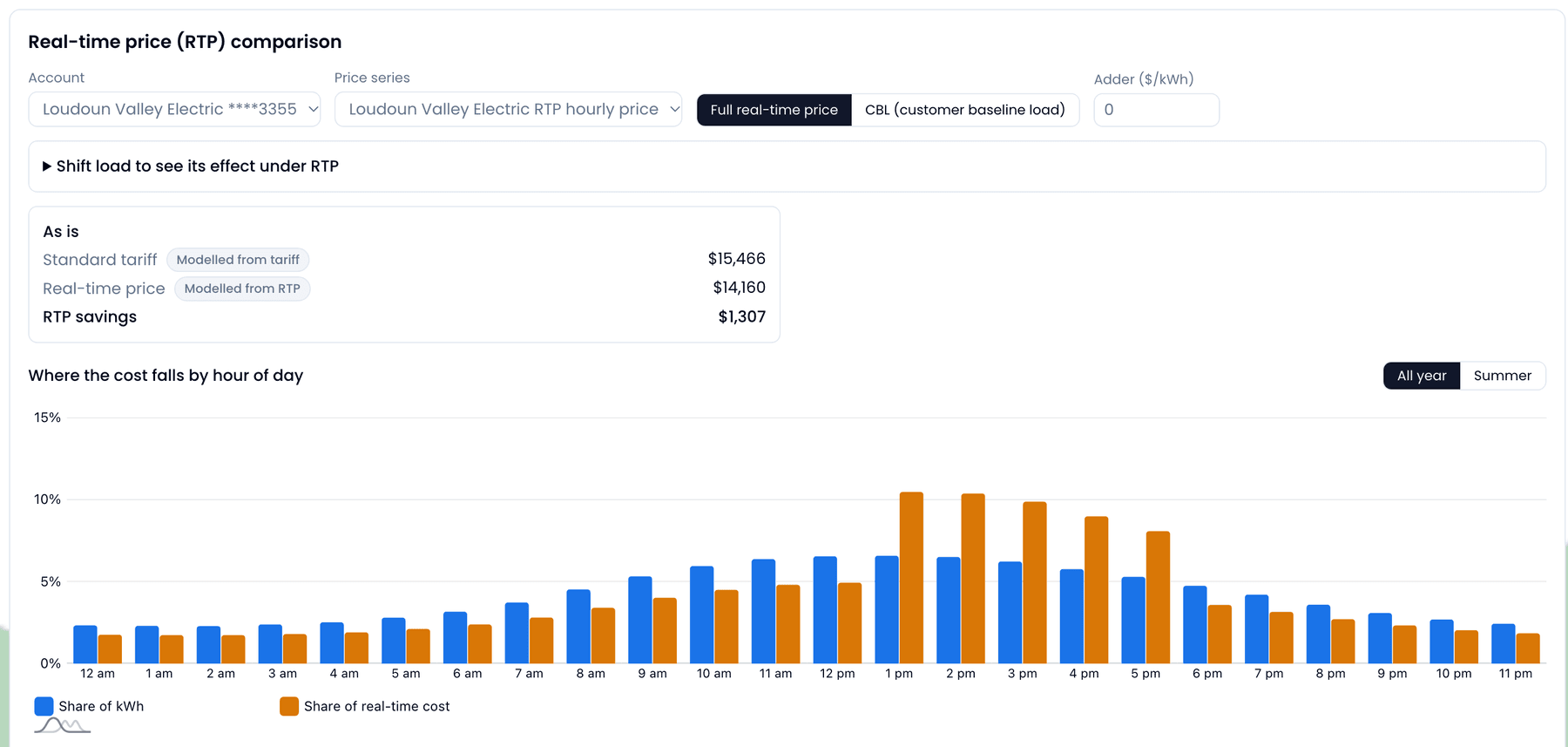
- RTP comparison shows what the site would pay on the utility's real-time price, using an RTP price series from Price data.
Price data
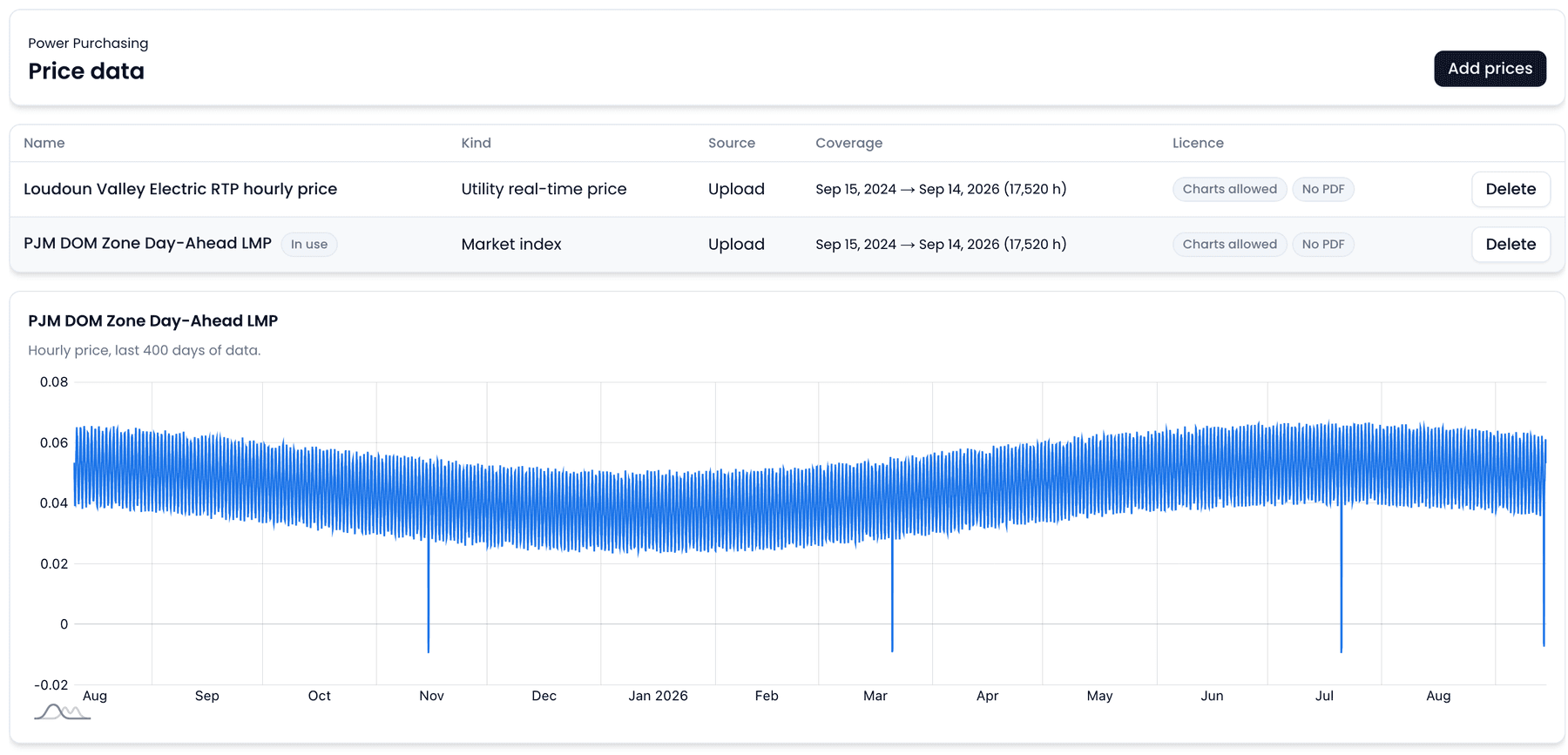
The hourly market and utility prices used to price index offers, hedges and real-time-price comparisons.
- Add prices uploads a CSV of hourly prices from your broker or utility. Index series price index-plus-adder offers and hedges; RTP series power the RTP comparison.
- Coverage shows the dates each series spans. Hours outside that range are reported as not fully priced.
- Licence controls whether a series can be shown in the browser and in PDFs, so licensed market data stays within its terms.
- Select a series to chart it.
Contract calendar
Every supply contract's key dates for the next 24 months, so no contract rolls over onto default rates unnoticed.
- Act-by is the date to start the renewal, a set number of days before the contract ends. Notice is the supplier's deadline for giving notice.
- Reminders go out ahead of each act-by date, at the lead times set on the contract (by default 60, 30 and 7 days before, and on the date itself).
- Select a site to open its Supply & RTP tab and compare renewal offers before the act-by date.

Budget
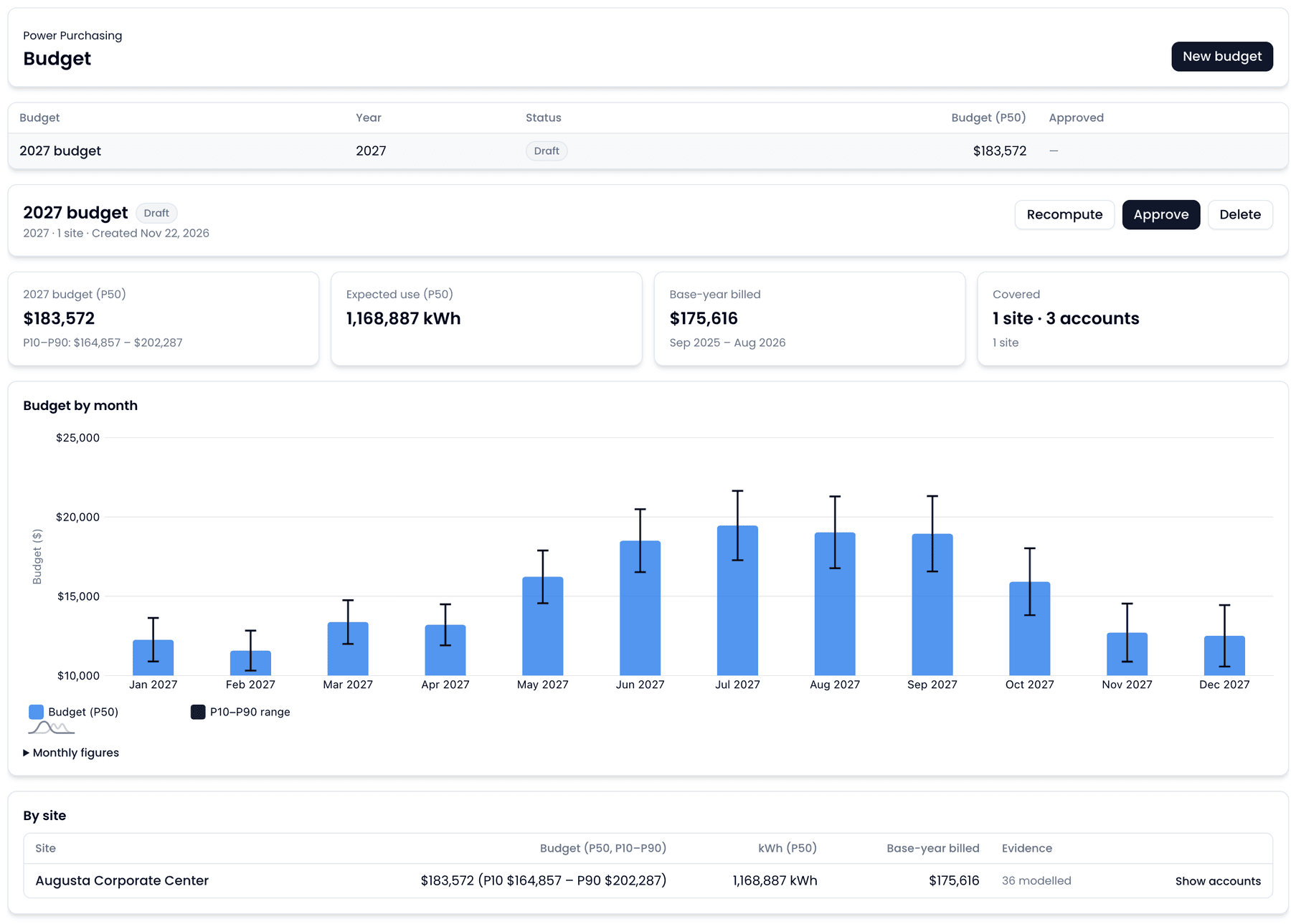
Build next year's electricity budget from the model, approve it, then track actual bills against it month by month.
- New budget — choose the sites to include. Each month starts from the billed cost for the same month last year, adjusted to normal weather, the rate's structure and the EIA price outlook. The budget shows the expected figure (P50) with a P10–P90 range: the range expected in 8 years out of 10.
- Review — Budget by month and By site show which months and sites drive the total. Add notes to record your assumptions.
- Approve — approving locks the budget in. Budget vs actual then follows each month's bills.
- Explain — What made the difference splits each month's variance into weather, usage, rate and contract, so you can explain it.
Set the threshold for Variance alerts on the budget itself.
Sites need recent electricity bills to be budgeted. A site whose accounts have no bills, or no matched rate, is left out rather than budgeted at zero.
Alerts
Turn Power Purchasing emails on or off in Notification settings, under Power Purchasing. Both are checked once a day.
- Budget variance — an account's monthly cost is over or under its approved budget by more than the budget's threshold.
- Contract renewals — a supply contract reaches one of its act-by reminders.
Troubleshooting
An account says “Needs a rate” — open the site's Rate & load tab and confirm one of the candidate rates. If none fits, the account may buy supply from a competitive supplier: link the supplier on Supply & RTP so it's priced as delivery only.
Billed and modelled don't line up — check the tariff first, then the load source. A meter that only covers part of the site, or a building type that doesn't match how the site is used, will skew every month.
“Load is modelled, not metered” — the site has no interval meter set as its load source, so its hourly shape comes from a building profile. The monthly totals still match your bills; the hour-by-hour shape is an estimate. Set an interval meter as the load source if you have one.
“Delivery only: needs the utility's price-to-compare” — enter the price-to-compare periods in the supplier account's Comparison settings on the Supply & RTP tab.
A site is missing from the budget — it has no recent electricity bills or no matched rate. Fix the rate or the bills, then recompute the budget.
An offer or RTP comparison says it isn't fully priced — the price series doesn't cover every hour in the period. Upload the missing hours on Price data.